

Home
ONV Backstage Management System (version 2.0) It is a software platform that centrally controls multiple devices and helps the enterprise management system. It can support remotely monitor and operate the equipment, count the equipment operating status, effectively organize the breakdown repair, and ensure that the equipment runs well. The system provides four main functions: homepage information statistics, equipment management, alarm management, statistics. And system permission setting as well.

Functions
Button
Click “中” to switch between Chinese and English interface
Click “Device Management”, “Alarm Management”, “Statistics”, “System Permissions” to enter the corresponding page
Click “Enter Map Positioning” to enter the map positioning interface
Move the mouse to the role: such as the “Operation and Maintenance Staff” , prompt box appears: “change password”, “logout”, “logout account”, click to perform the corresponding operation.
Map Location Page
Functions
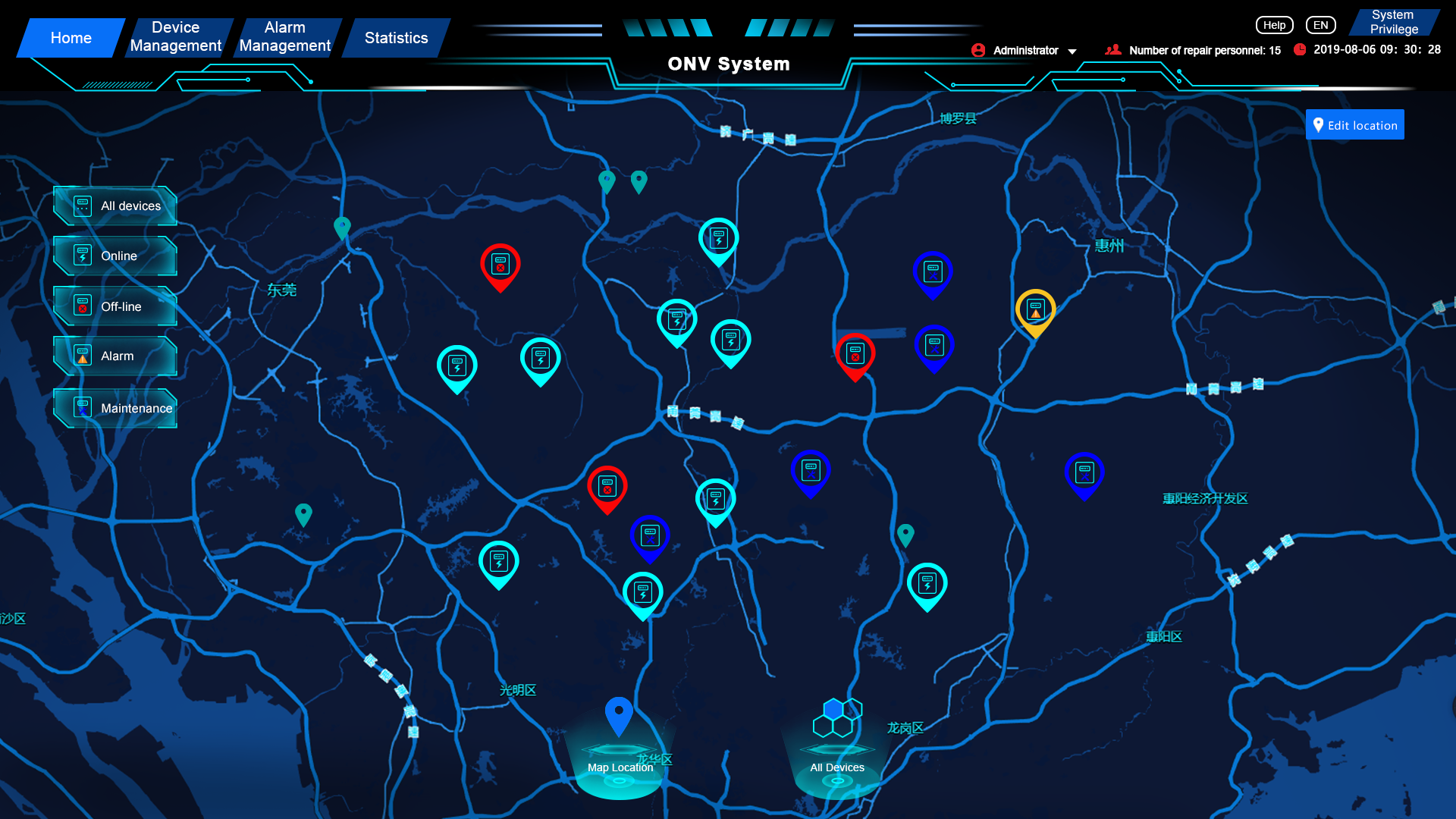
Through the large-screen view on this page, the device position and operating status are fully displayed, and the device status is displayed in categories.
Button
Click “All Devices” to display all device status
Click “Online Device” to display all online devices
Click “Offline Devices” to display all offline devices
Click “Alarm Device” to display all alarm device conditions
Click “Maintain Equipment” to display all the equipment under maintenance
Click “Map Location” below to display the search box, enter the device ID in the box to search for the location
Click “View current address list” to display all the specific addresses, click “Previous” and “Next” to turn pages
Click “All Devices” to enter all device status pages
Click “Edit Location” to enter the location editing interface
Device Status Overview Page
Functions
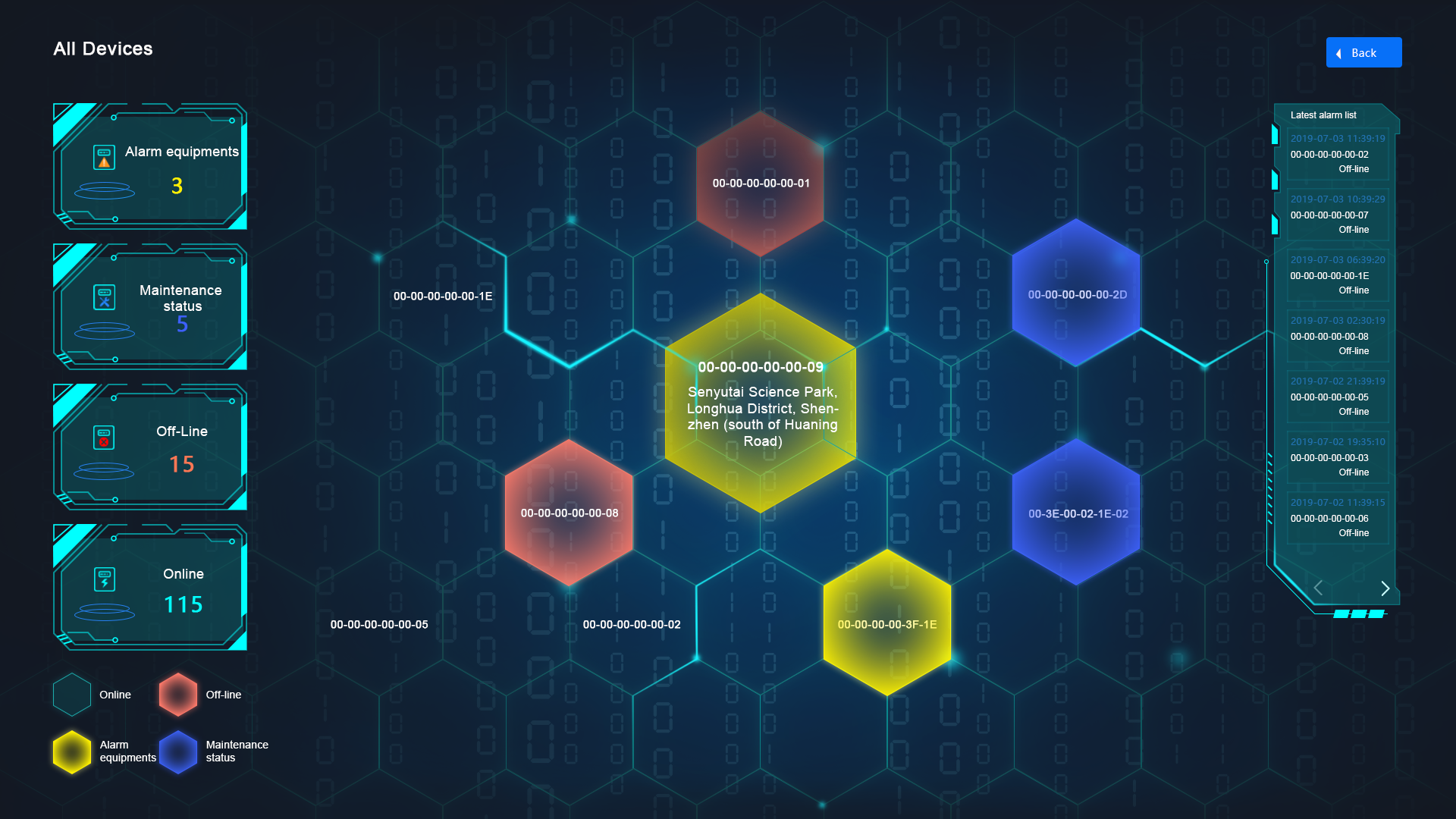
Through the large screen view on this page, it shows the overall situation of all equipment, displays various operating states and number of equipment by category, and provides the latest alarm list of equipment which is convenient for viewing.
Button
When the mouse is hovered to the device number area, the corresponding address information can be displayed, and the device detailed information pop-up box will be displayed when clicked
Turn the page by clicking “<” “>” at the bottom of the device’s latest alarm list
Return to the map positioning page by clicking “Back”
Device Management -IoT Intelligent Box List Page
Functions
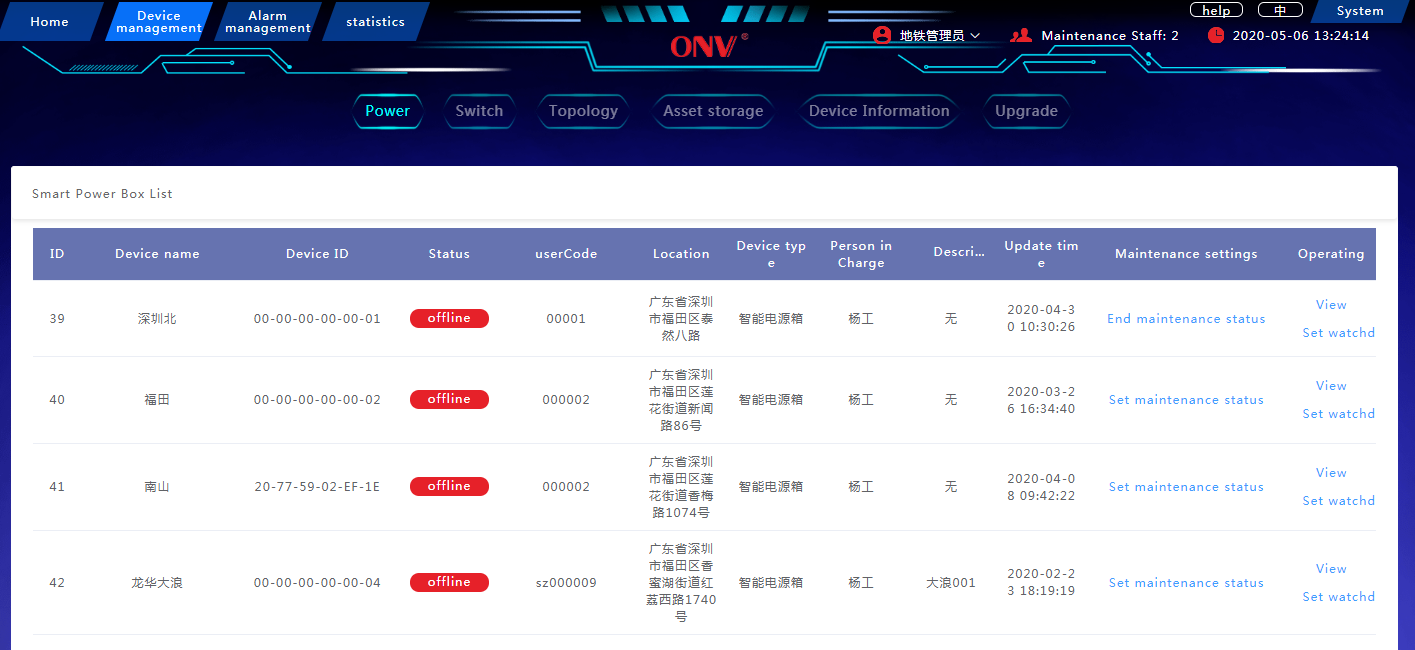
The table on this page lists information about the IoT intelligent box.
Set the IoT intelligent box maintenance status settings, check the IoT intelligent box, and set the watchdog and other functions.
Button
Click “Set maintenance status” in the maintenance setting column to set the device to maintenance status, and click “End maintenance status” to cancel the maintenance status.
Click the operation column “Click to view” to enter the IoT intelligent box status setting interface
Click the operation column “Set watchdog” to open the watchdog edit box to edit and modify the corresponding setting information.
Click “<” “>” at the bottom of the device’s latest alarm list to turn the page, directly click the corresponding number to enter the corresponding page, or enter the number in the jump box to jump directly to the corresponding page
Device Management -IoT Intelligent Box Status Settings Page
Functions
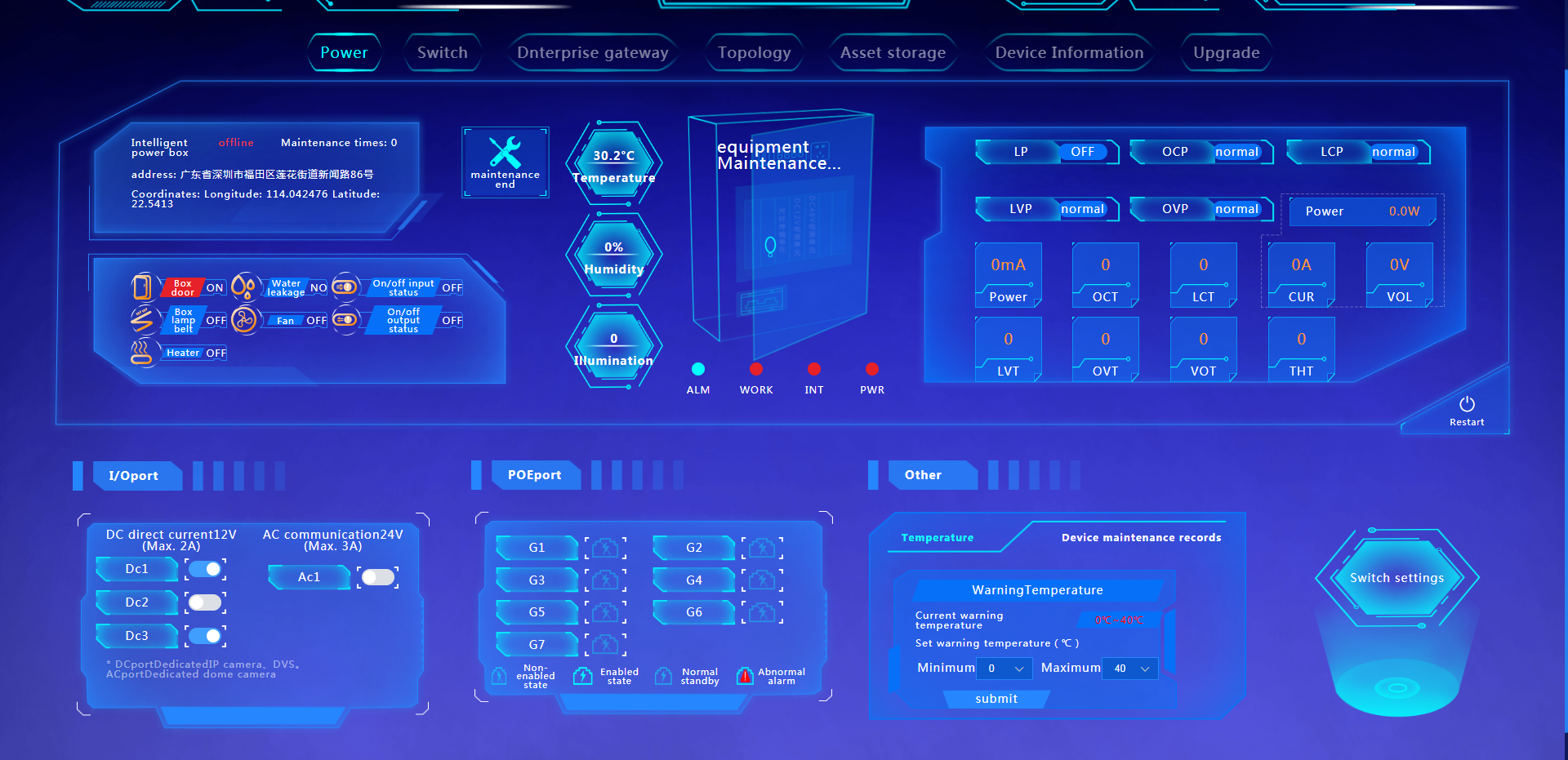
This page displays the IoT intelligent box detailed information: including location, operating status, specific parameters, I/O port status, and PoE port status and settings, etc., support realize reclosing function and alarm temperature setting, and view equipment maintenance records.
State description
Relevant parameters such as “box door” are normally displayed in blue and abnormally in red;
The blue indicator light below the cabinet is normal, and the red indicator is abnormal alert
Button
Click “Maintenance settings” to set the device to the maintenance state
Click “Reclosing” to realize the function of reclosing
Click the switch button of the corresponding port of the I/O port, and click “Send a command” to turn on / off the corresponding port
Click “Setting” at the PoE port to open the setting switch, click the switch button of the corresponding port to turn on / off the corresponding PoE port
Click “Alarm temperature setting” of other settings to select the appropriate temperature value, click “Submit” to set the alarm temperature range
Click on the “Equipment maintenance records” of other settings to view the list of equipment maintenance records.
Click “Switch configuration” to enter the switch configuration interface of the IoT intelligent box
Remarks:
If an alarm occurs:
Click the pop-up box “Close alarm” to close the alarm pop-up box;
Click “Clear” to clear the alarm information item
If the door is opened:
Click the x in the upper right corner of the video playback box to close the video box
Device Management-Switch Configuration Page
Functions
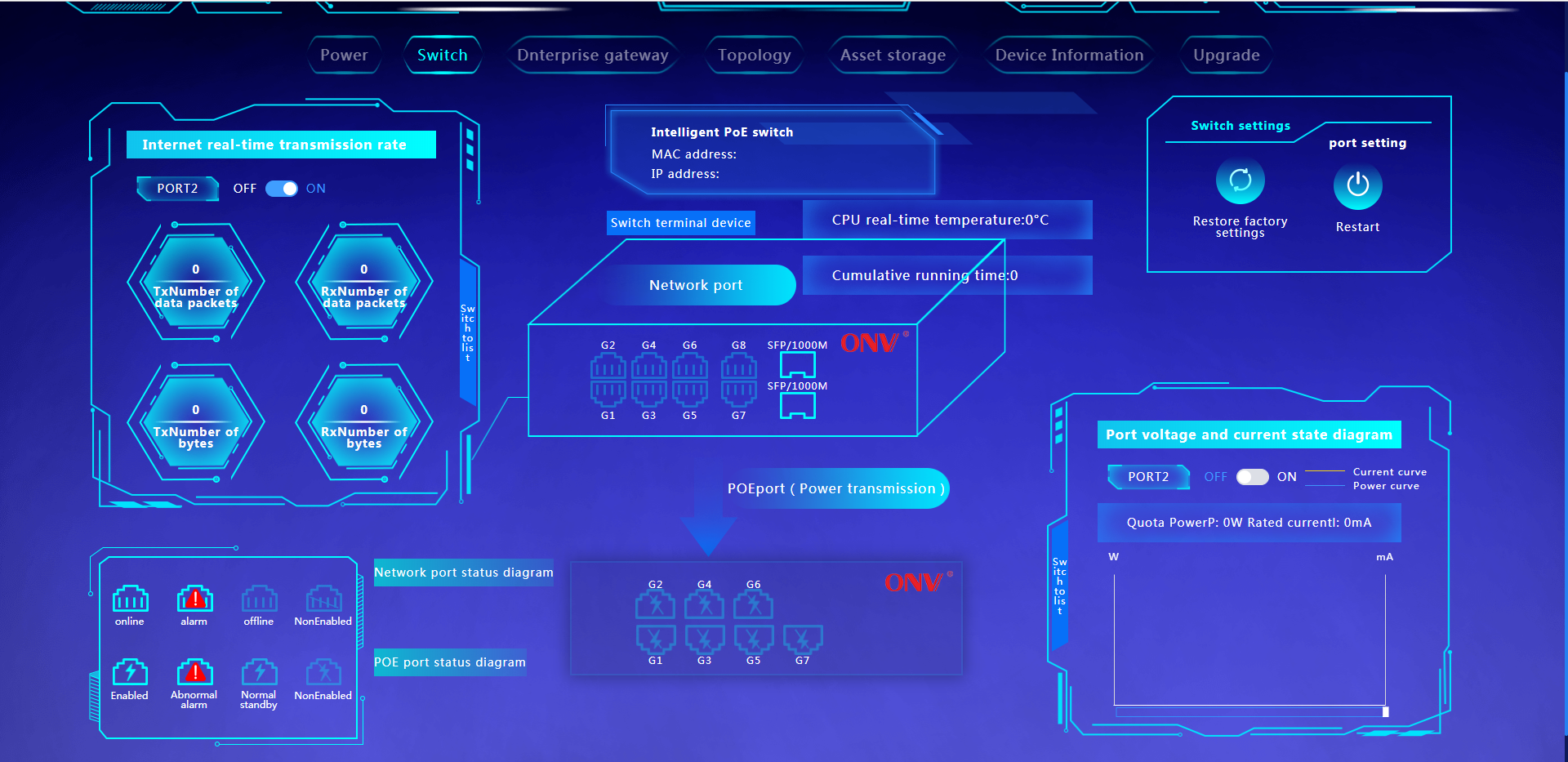
This page displays information about the switches inside the IoT intelligent box:
Including location, specific parameters, I/O port status, real-time transmission rate of each port, POE port power status, and port voltage and current curve, etc., to achieve remote control of the switch and each port.
Button
Click “Switch to list” to display the real-time transmission rate of the port and the details of the PoE port
Click the relevant icon of “Switch settings” to realize the operation commands of each switch
Click the relevant icon of “Port settings” to realize the port operation command
Click on the port switch in the online real-time transmission rate box and the port voltage and current graph to turn on / off the port
Click “Switch terminal device” to switch to terminal device view
Device Management-Topology Page
Functions
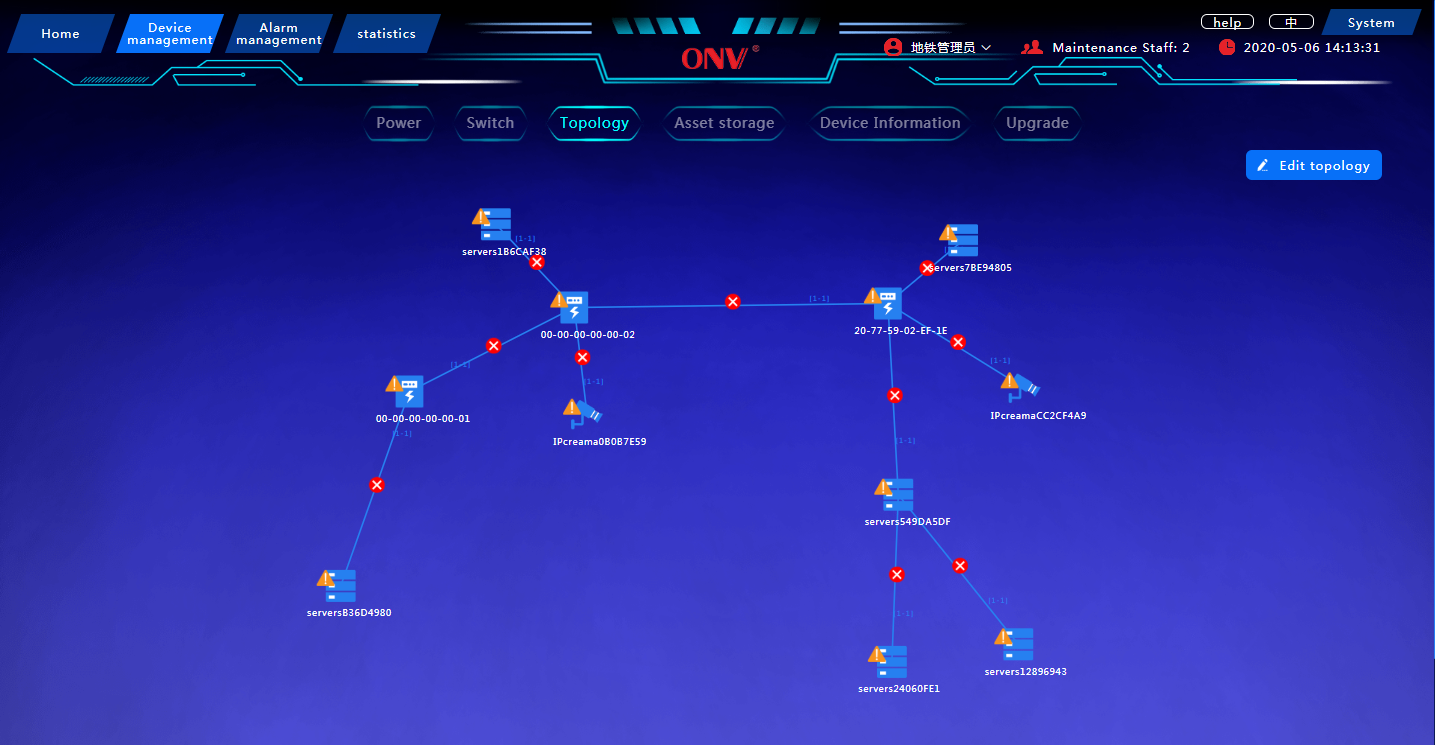
This page is a topology display of all devices, showing the cascade relationship and information transmission between devices, and support editing the topology map
Button
Click “Edit topology” to open the edit topology pop-up box for operation
Device Management-Asset Storage Page
Functions
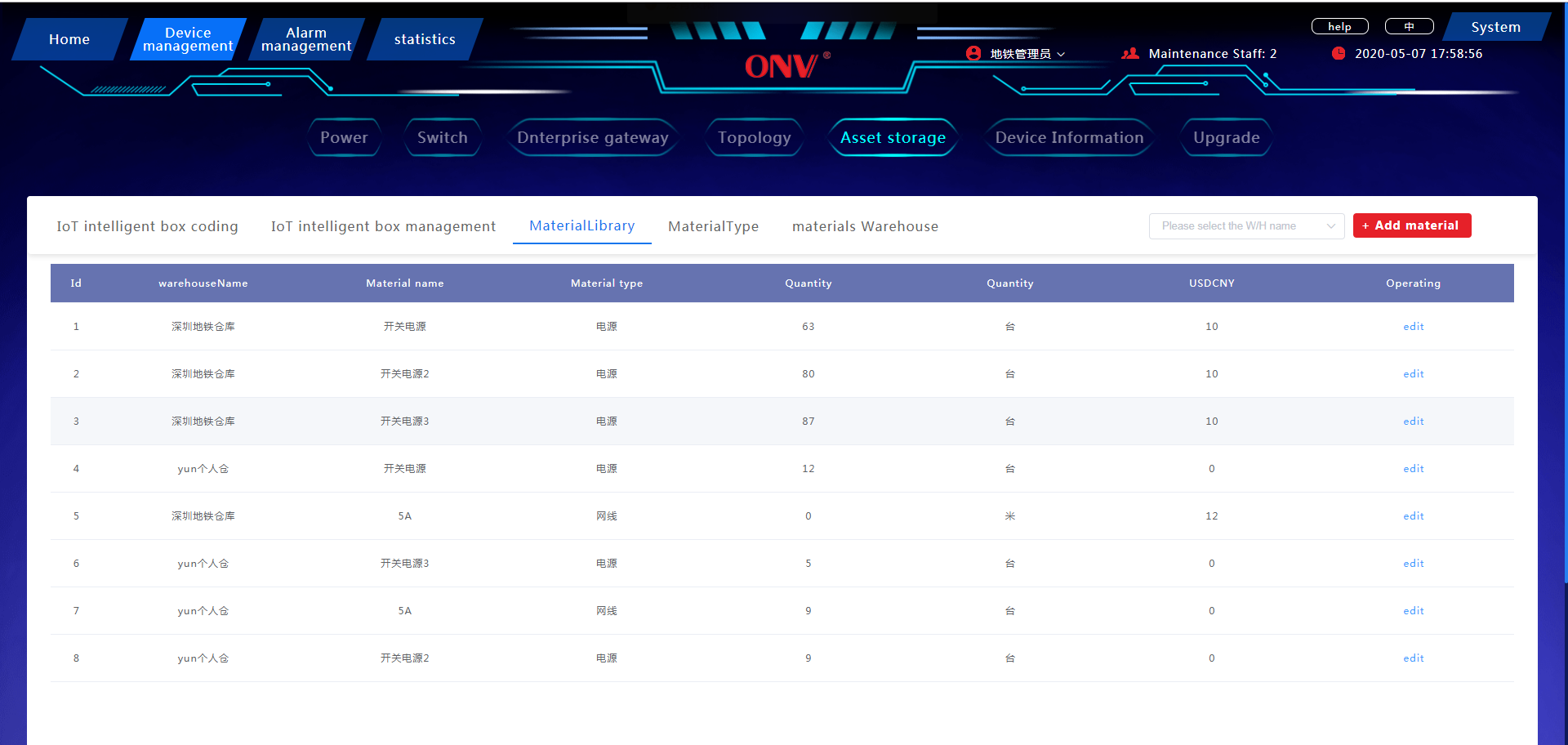
This page records, organizes and encodes all assets for easy viewing and management
Including: IoT intelligent box coding, IoT intelligent box management, material library management, material type management, material warehouse .
Button
IoT Intelligent Box Coding
Click “add code” to encode the newly entered IoT intelligent box
IoT Intelligent Box Management
Click “Add IoT intelligent box” to add a new IoT intelligent box
Click “Edit” in the list to edit the corresponding IoT intelligent box information.
Click on “Stop” in the list to mark the corresponding IoT intelligent box information as a scrap status.
Material Library Management
Click the material warehouse box to select the corresponding material warehouse
Click “Add material” to open the add material pop-up box, edit the related material information, and complete the material addition
Click “Edit” in the list to open the material details pop-up box to edit and modify the corresponding material information
Material Type Management
Click “Add material type” to open the material type details pop-up box, edit the related material type information, and complete the material type addition
Material Warehouse Management
Click “Add warehouse” to open the warehouse details pop-up box, edit the relevant warehouse information, and complete the warehouse addition
Device Management-Device Information Page
Functions
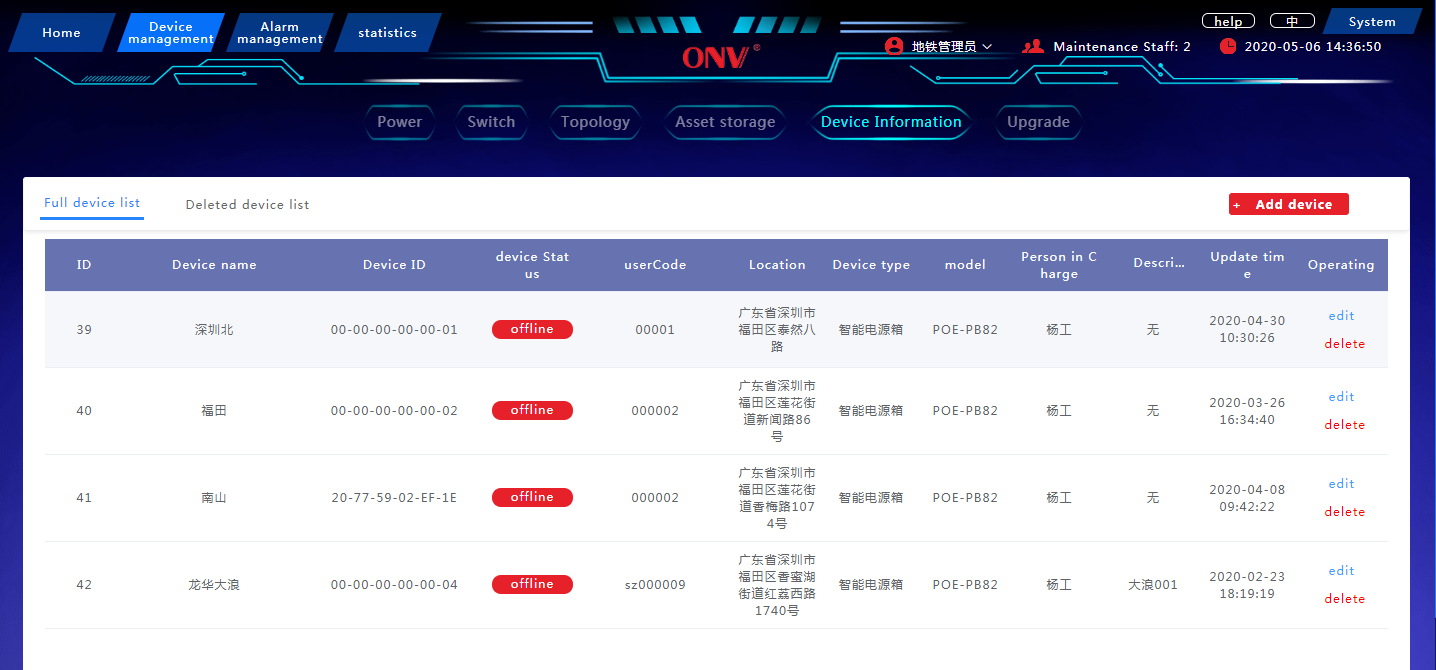
This page is a list of all equipment, easy to view and control
Contains: the full device list and the deleted device list.
Button
Full Device List
Click “Add device” to open the add device pop-up box, edit the related device information, and complete the device addition
Click “Edit” to open the device information pop-up box to edit and modify related information
Click “Delete” to delete the corresponding device
Deleted device list
Click “Restore” to restore the device from the deleted device list to the full device list
Device Management-Upgrade Page
Functions
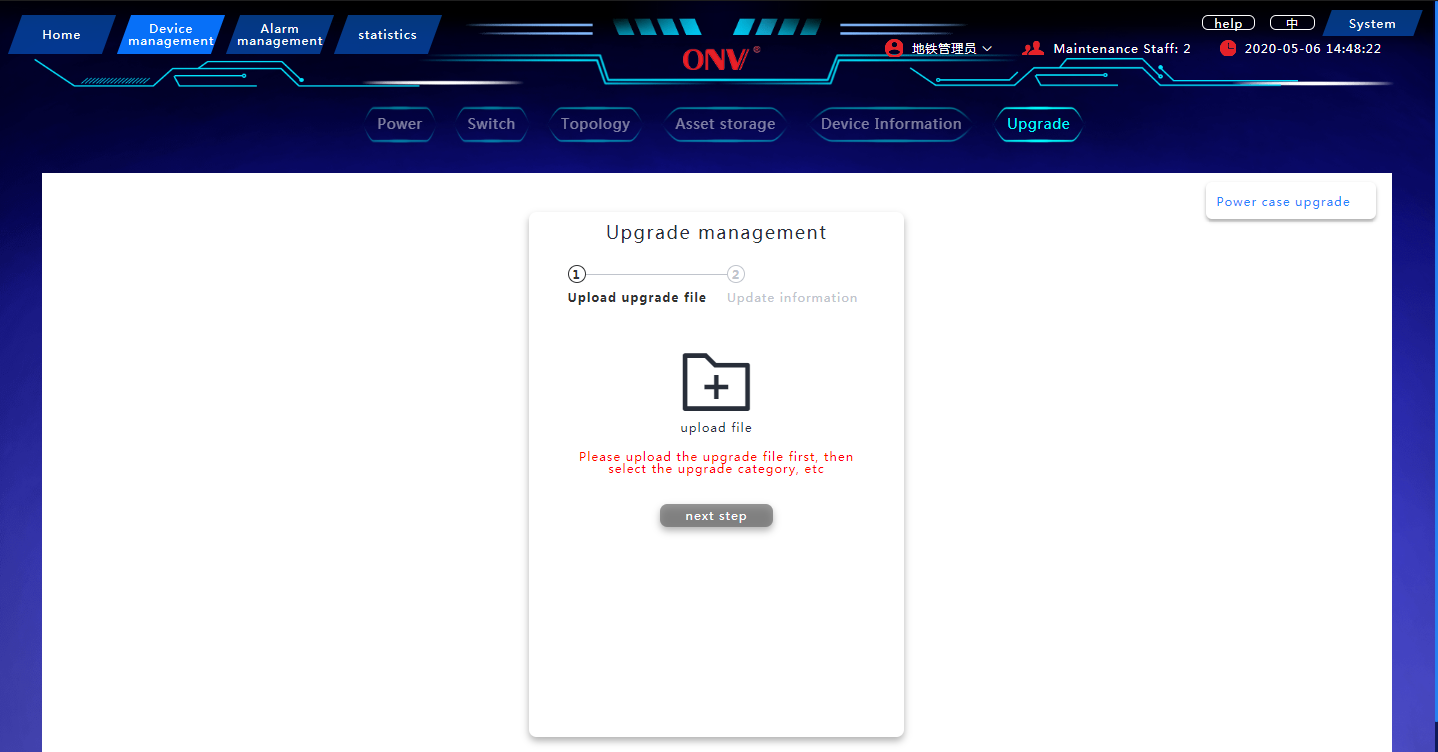
Complete the system upgrade of the IoT intelligent box and its application
Button
Click “IoT intelligent box upgrade” to open the upgrade management pop-up box and follow the prompts to complete the system upgrade
Click “Application upgrade” to open the application upgrade pop-up box and follow the prompts to complete the system upgrade
Alarm Management-Fault Information Page
Functions
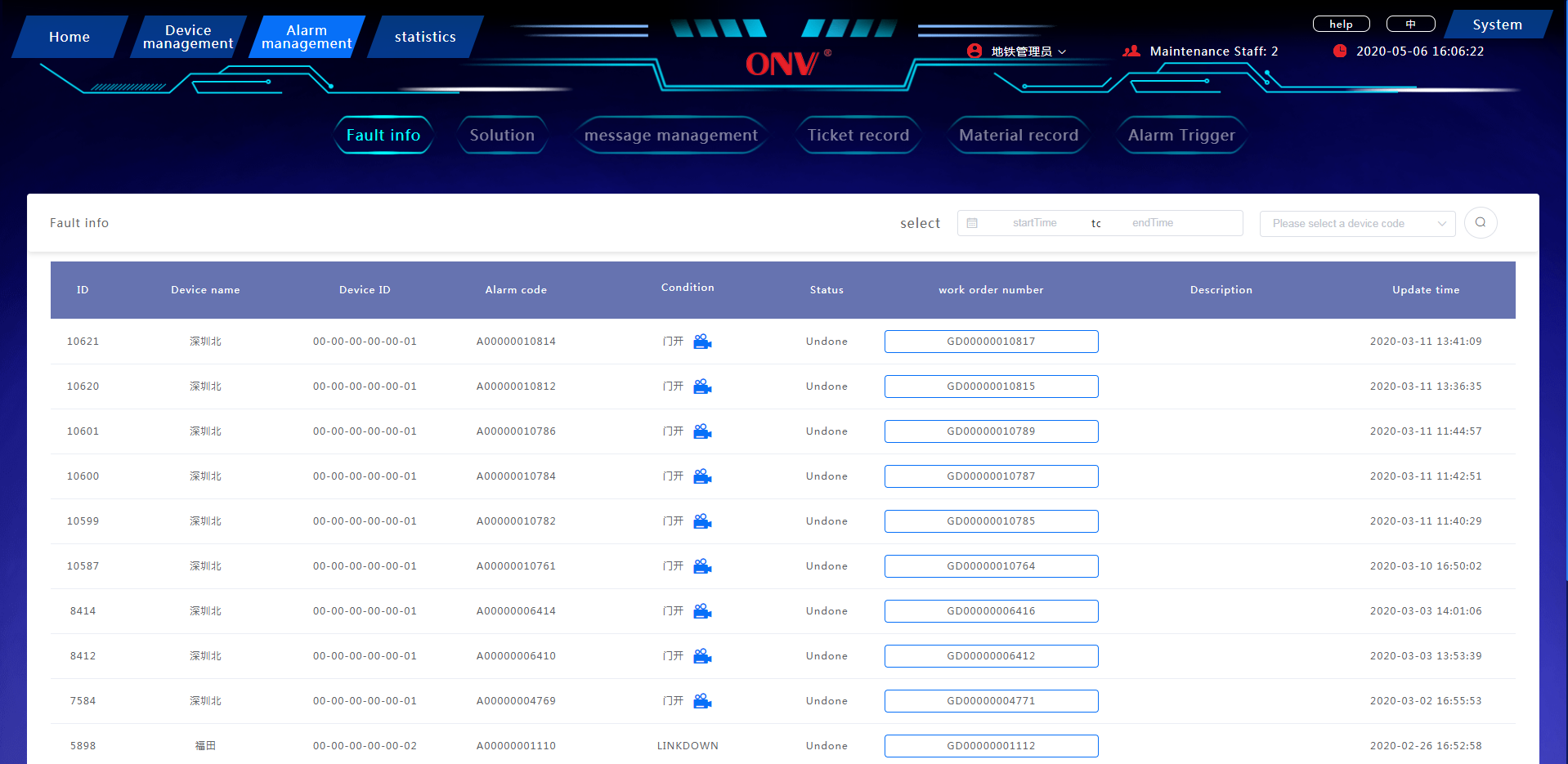
This page is a list of all fault information for easy viewing and management
Button
Click the filter box to select the time period;
Select the device code in the query box for quick query
If the alarm condition is the door open, click the corresponding camera to view the video
Alarm Management-Solution Page
Functions
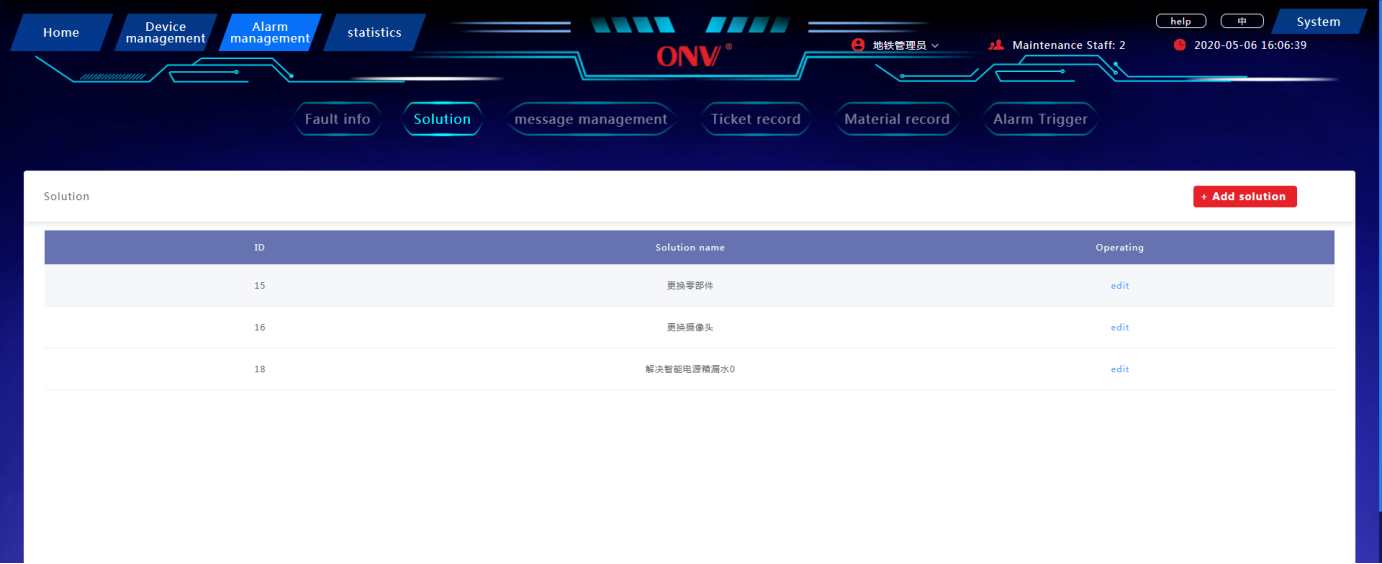
This page is a list of all the corresponding solutions to the fault, easy to manage
Button
Click “Add solution” to open the add solution pop-up box, edit related information, and complete the solution addition
Click “Edit” to open the solution pop-up box, edit and modify the corresponding fault solution
Alarm Management-Message Management Page
Functions
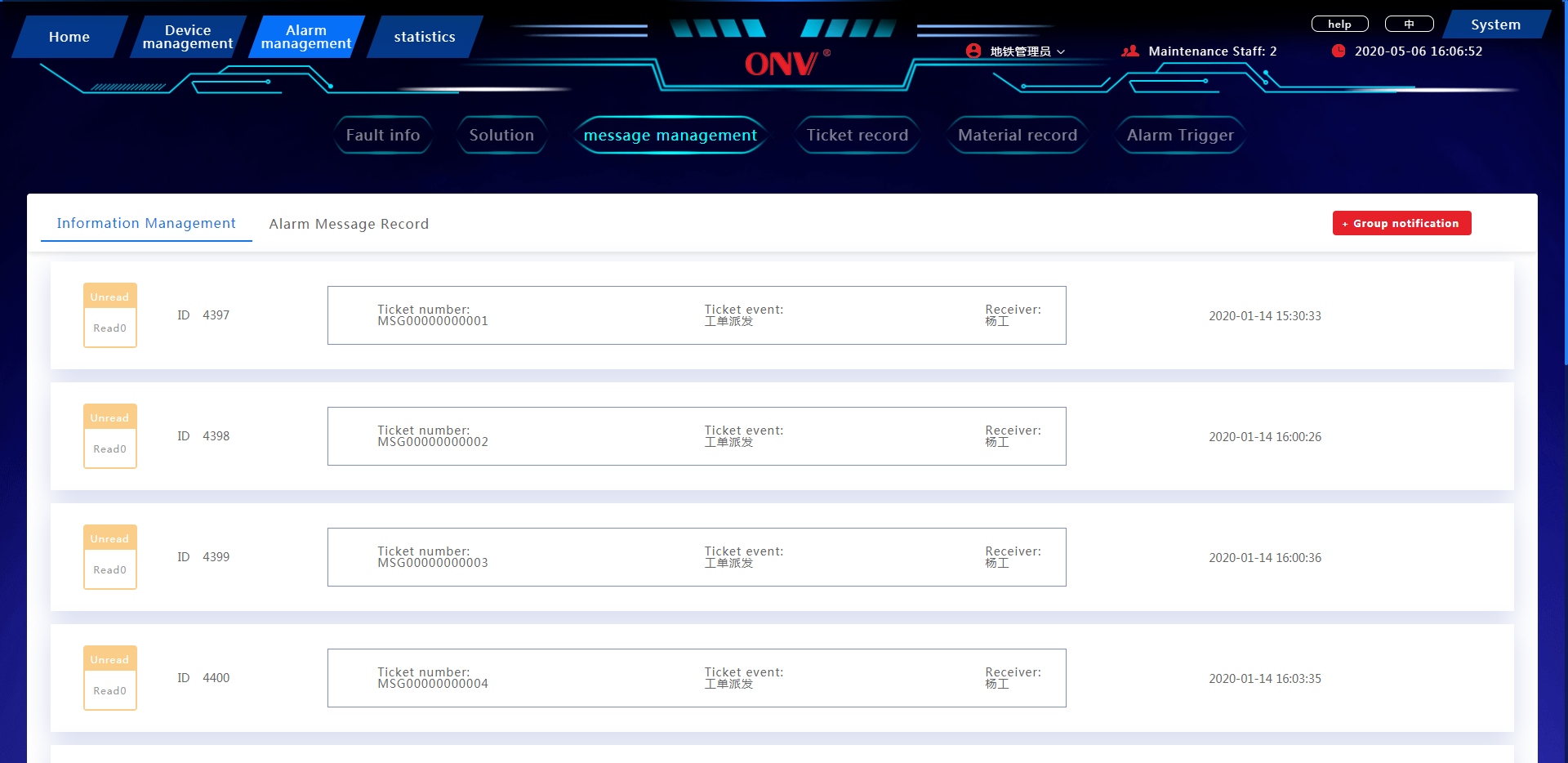
This page is a list statistics of all notification information for easy viewing and management
Button
Click “Group notification” to open the group notification pop-up box and write related notification information
Alarm Management-Ticket Record Page
Functions
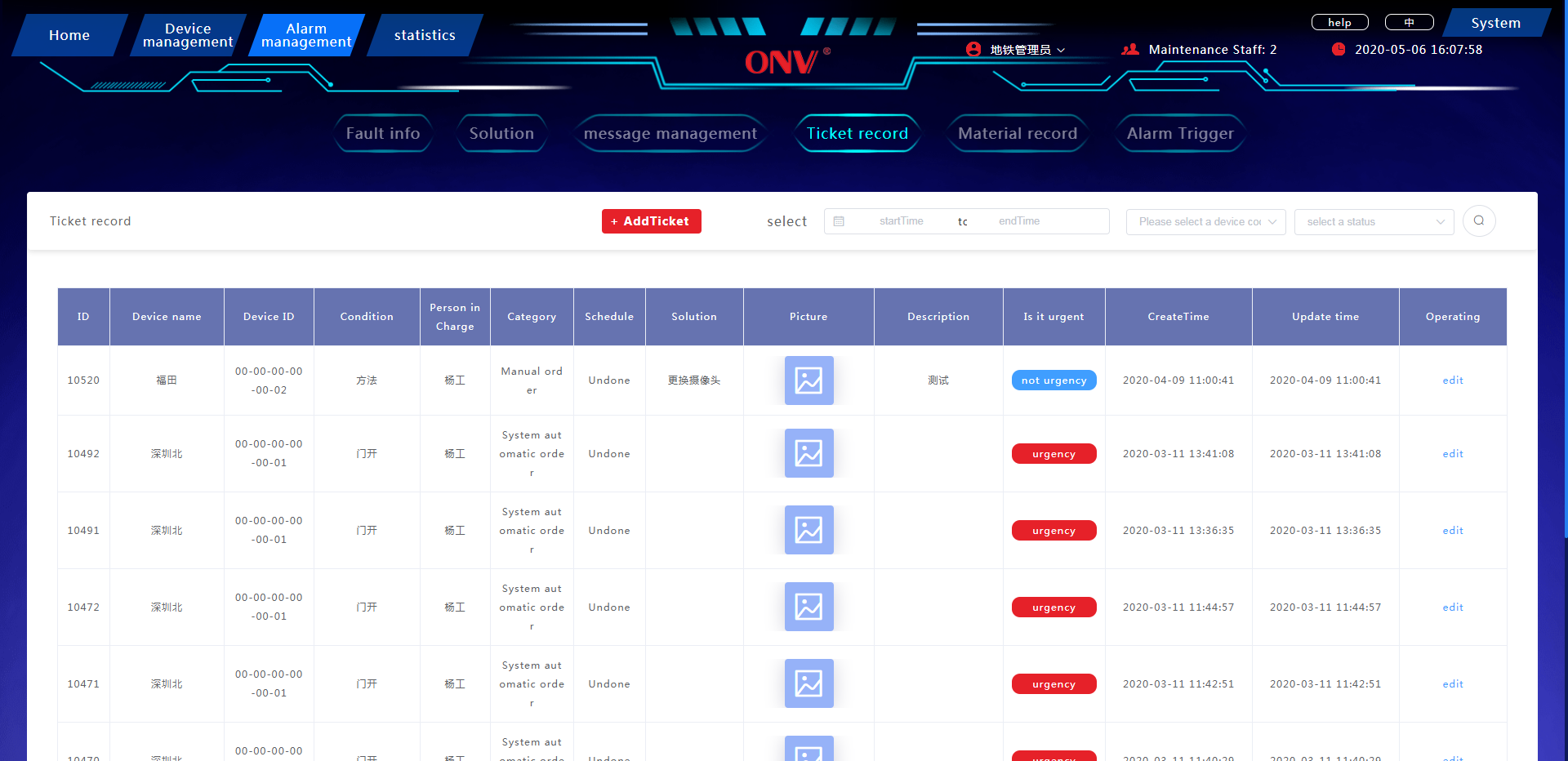
This page is a list statistics of all ticket records for easy viewing and management
Button
Click “Add ticket” to open the add ticket pop-up box and edit related ticket information
Click the filter box to select the time period
The query box selects the device code and work order status to achieve fast and accurate query
Click “Edit” to open the ticket information pop-up box, edit and modify the corresponding ticket information
Alarm Management- Material Record Page
Functions
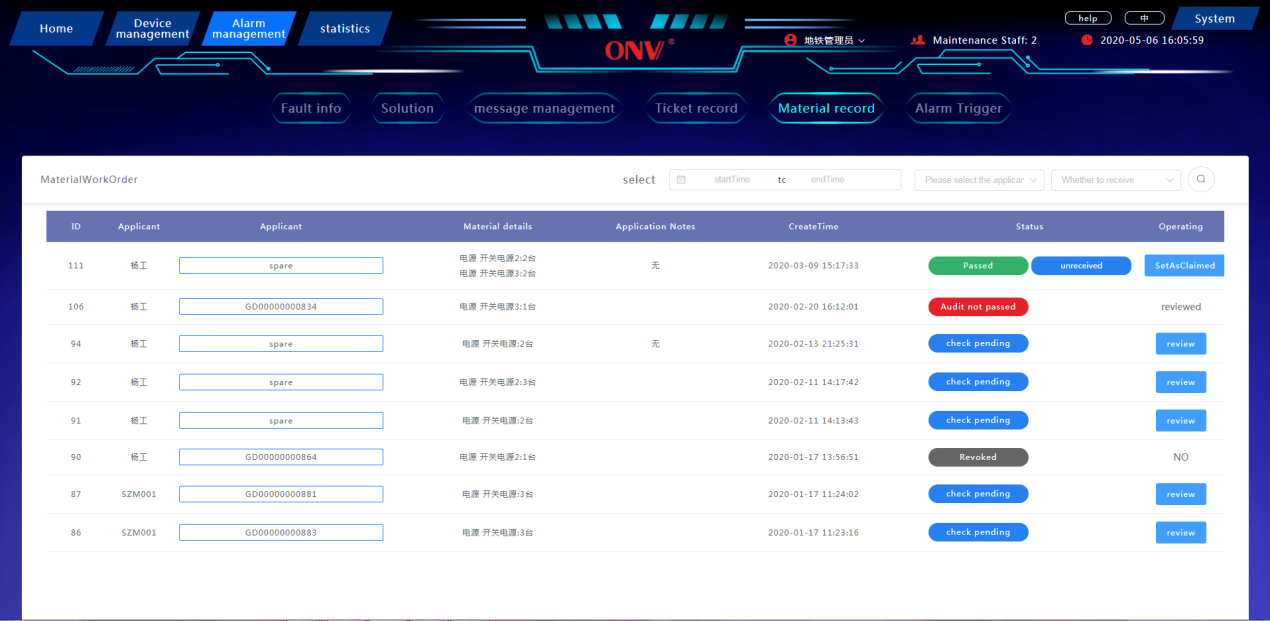
This page is a list statistics of all work order material information for easy viewing and management
Button
Click the filter box to select the time period
Select the applicant and material collection status in the query box to achieve fast and accurate query
Click the “Audit” in the action column to open the audit information pop-up box, edit and modify the corresponding audit status
Click “Set as claimed” in the action column to change the status of the material work order to claimed
Statistics-Failure Statistics Page
Functions
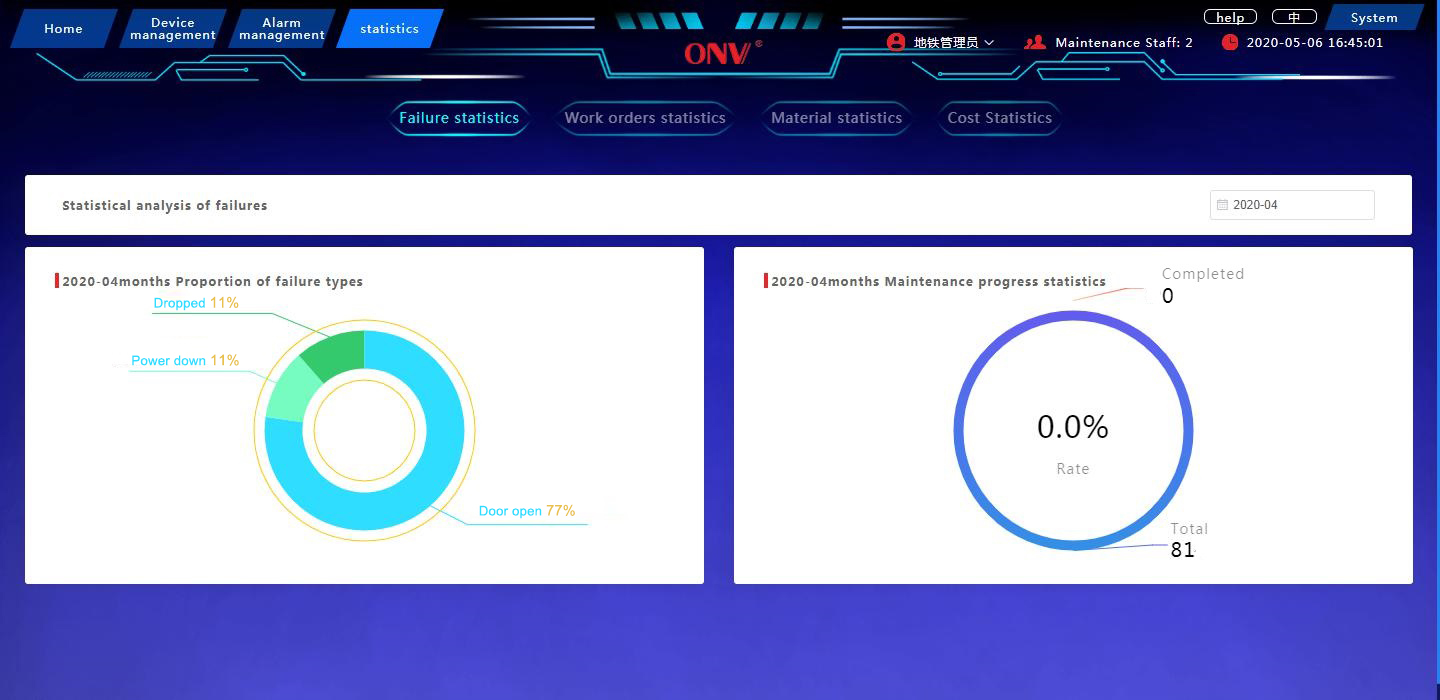
This page is a statistical analysis of all fault information in a month, including two types of fault type statistics and maintenance progress statistics.
Button
Click the filter box to select the statistical time
Statistics-Work Order Statistics Page
Functions
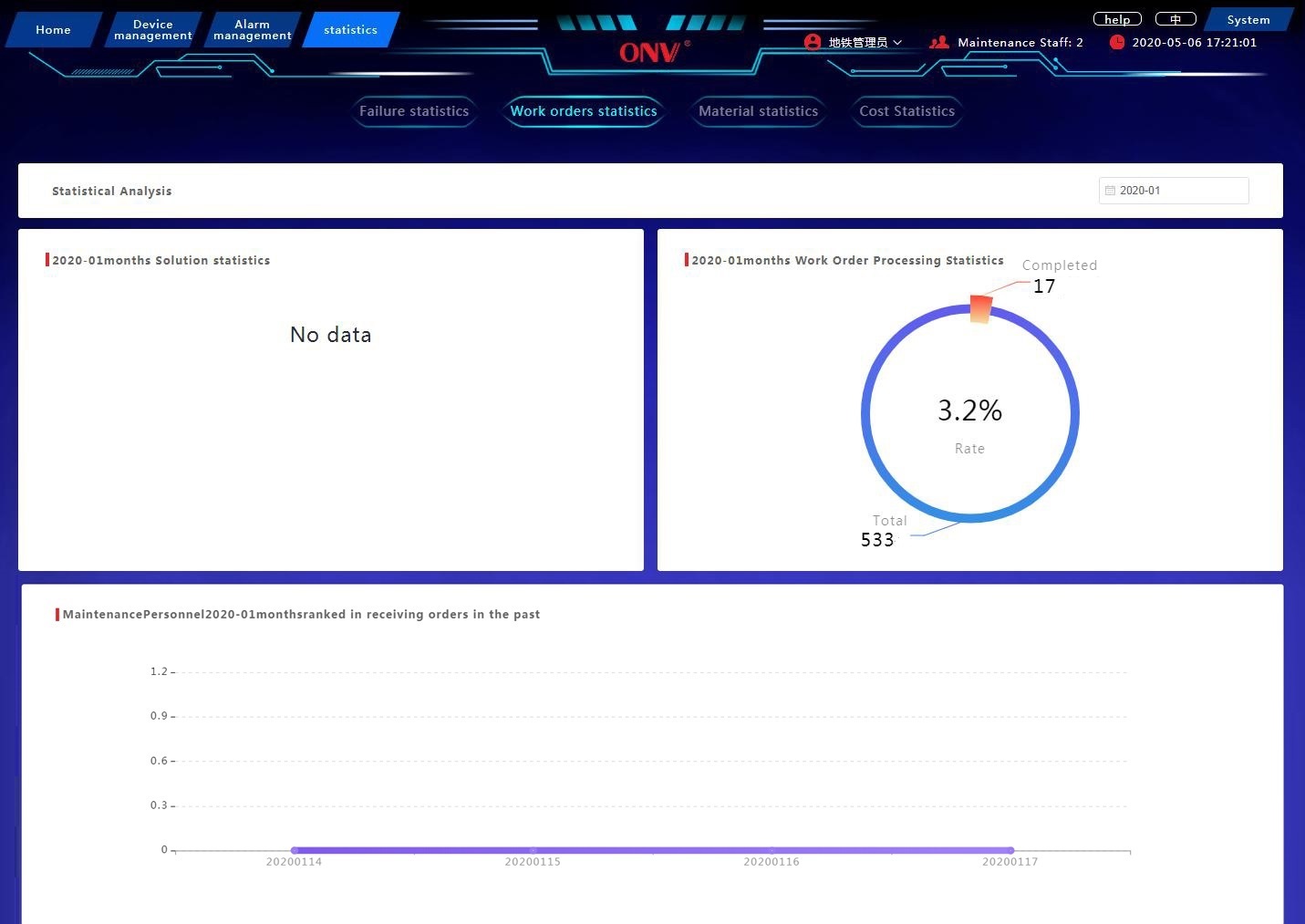
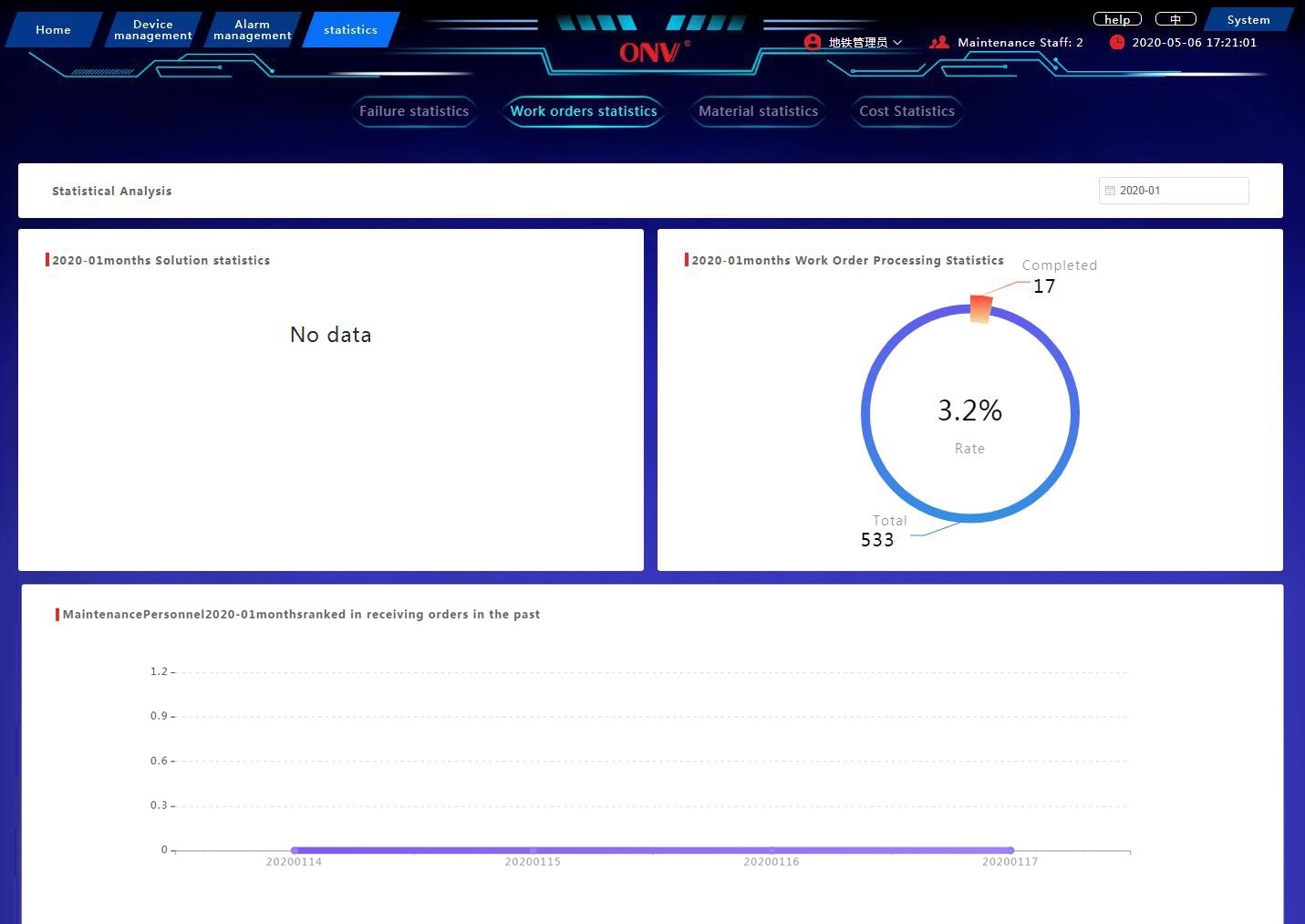
This page is a statistical analysis of all work order information in a month, including statistics on alarm type proportions, work order processing progress statistics, and maintenance personnel’s order ranking within a month.
Button
Click the filter box to select the statistical time
Statistics-Material Statistics Page
Functions
This page is a statistical analysis of all material information in a month, including material type proportion statistics, recent material collection statistics, and maintenance personnel material application form statistics.
Button
Click the filter box to select the statistical time
Statistics-Cost Statistics Page
Functions
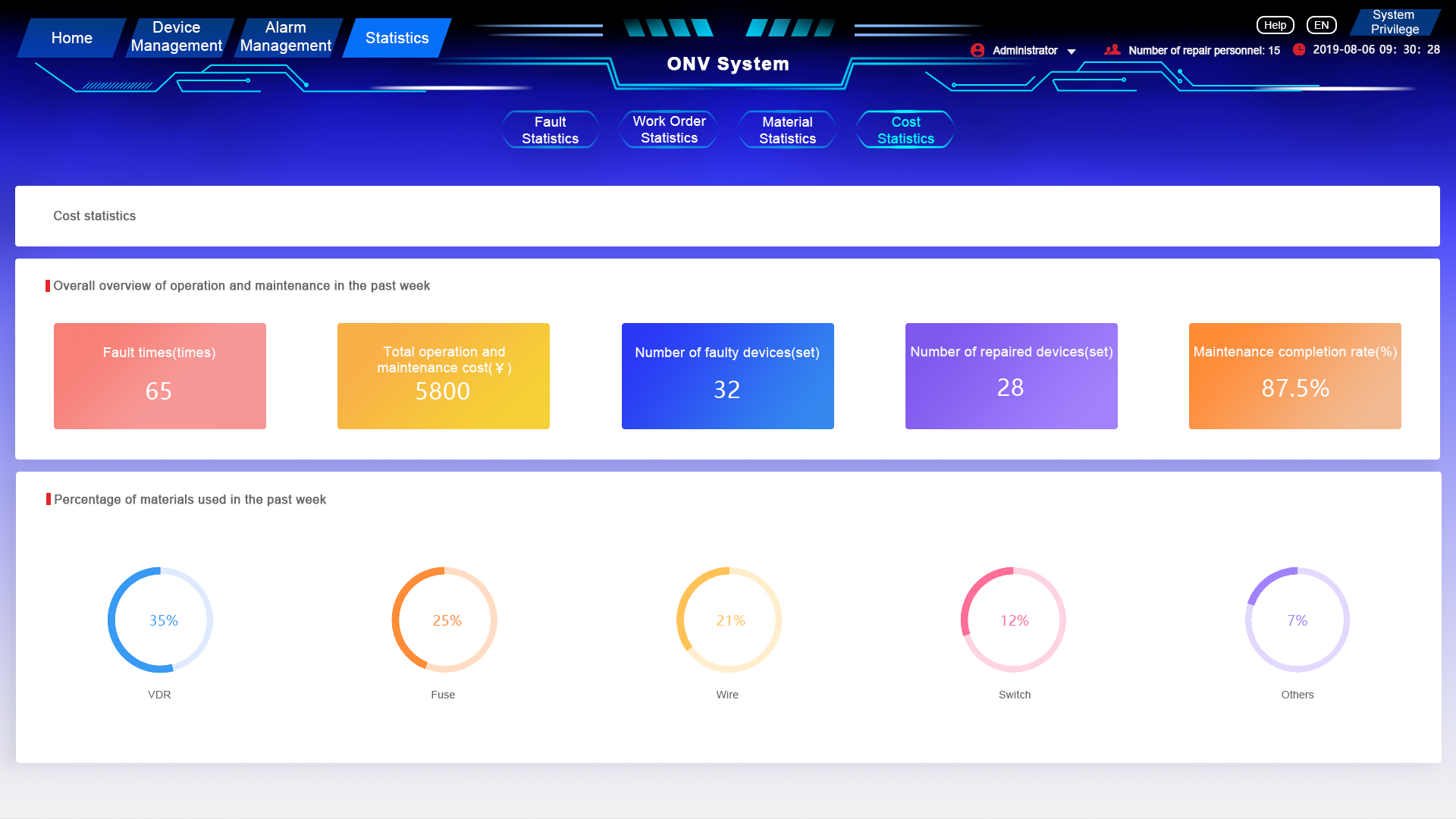
This page is a statistical analysis of the operation and maintenance situation in the past week, including the overall overview of the operation and maintenance in the past week, and the material usage ratio in the past week.
System Permissions Page
Functions
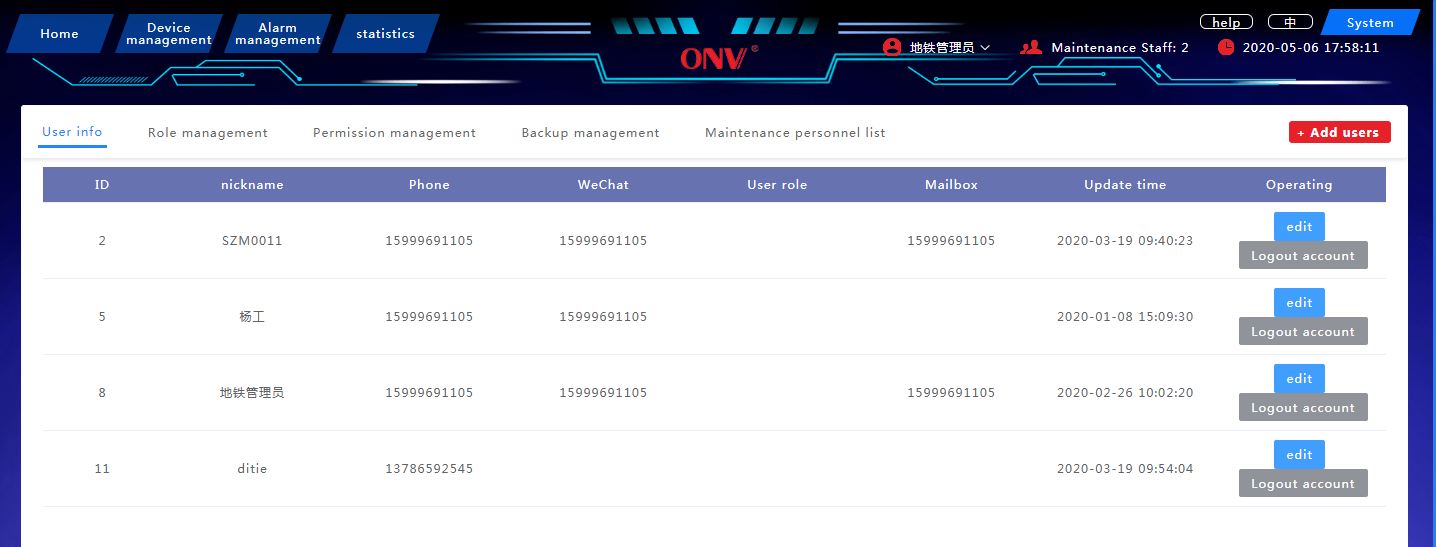
This page is to set the operation authority of the system user, edit the operator information, and related backup management. contain:
User information, role management, permission management, backup management, and maintenance personnel list
Button
User Info
Click “Add user” to open the Add User pop-up box, edit user information, and complete user addition
Click “Edit” in the list to open the user information pop-up box to edit and modify the corresponding user information
Click “Logout account” in the list to complete account logout
Role management
Click “Add role” to open the add role pop-up box, edit the role information, and complete the role addition
Click “Edit” in the list to open the role information pop-up box, edit and modify the corresponding role and permissions
Click “Delete” in the list to delete the corresponding role
Permission management
Click “Add permission” to open the add permission pop-up box, edit the permission information, and complete the permission addition
Click “Edit” in the list to open the permission information pop-up box to edit and modify the corresponding permission
Click “Delete” in the list to delete the corresponding permission content
Backup management
Click “Backup now” to back up related content
Maintenance personnel list
Click “Add maintenance personnel” to open the add maintenance personnel pop-up box, edit the corresponding information, and complete the maintenance personnel addition
Click “Edit” in the list to open the maintenance personnel information pop-up box to edit and modify the corresponding maintenance personnel information
Click “Delete” in the list to delete the corresponding maintenance personnel